Social media platforms have different video length requirements. For example, the Instagram story video has to be 3 - 15 seconds; the IGTV video has to be between 15 seconds and 10 minutes. For videos that are longer than the maximum length, the majority of social media platforms provide easy-to-use trim tools. As for videos that are too short, you need to extend the video length manually before posting.
In the following parts, we will be showing you 7 easy ways to extend video length using FlexClip, an online video editor that saves you from the trouble of downloading, complex editing, and even exporting. The detailed tricks are as follows. Refer to the part you need.
Add More Photos/Videos
You can enrich your video with more materials. Don’t get me wrong, you don’t have to take a camera out to shoot more scenes. FlexClip, an online editor that's always devoted to providing excellent editing experiences, has a stock library containing millions of royalty-free photos, videos.
Here is how to find the perfect photo/video from the library and add it to your video for free. Click on Create a Video button below to get started.

Step 1. Upload a Video
Go to the Media section. Click on the Upload Files button, upload your video from a local folder, cloud services, or mobile devices, and then click Add as Scene to apply to the timeline. Drag and drop will also do.
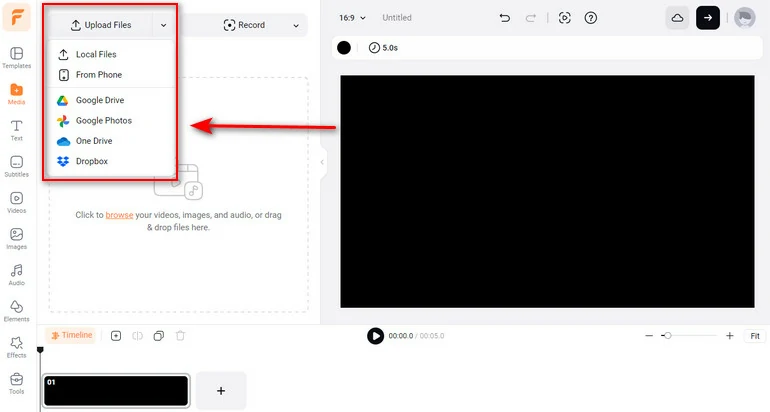
Upload a Video to FlexClip
Step 2. Search for Photos/Videos That Match Your Original Clip
Switch to Videos or Images section. Input any keyword on the search column, and then find the resource you love. Click on the Add as Scene button to add it to the timeline.
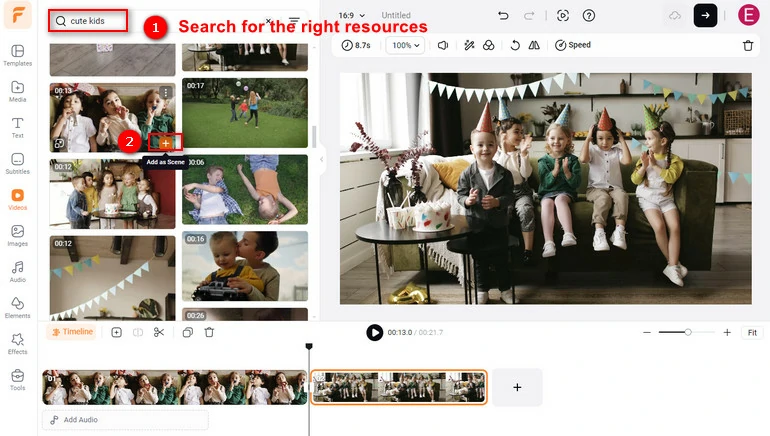
Search for the Right Resources
Step 3. Trim
You might not need the whole video clip. Tap on the clip, drag the slider and you can remove unnecessary parts of the video.
Loop Your Video for Several Times
Looping a video means playing the video several times. Looping a video helps to multiply the video length and highlights the fun parts of the video.
There are tons of video loopers you can utilize. Now, we will take FlexClip as an example to show you how to loop a video.
Step 1. Loop a Video
Once you are at FlexClip's editing page, upload your video clip. Select Duplicate. Duplicate the original video clip as many times as you want.
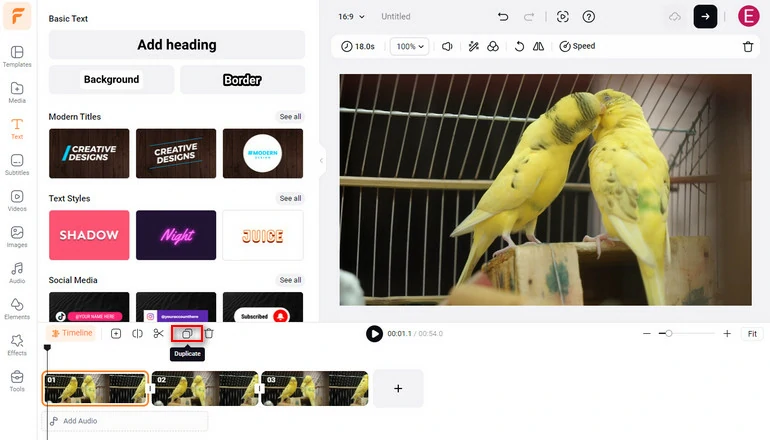
Loop a Video
Step 2. Make More Edits
To make the looped video clips go smoothly between each other, you might need to add transitions, motions, fade in/out audio. Go to perspective options to apply those edits.
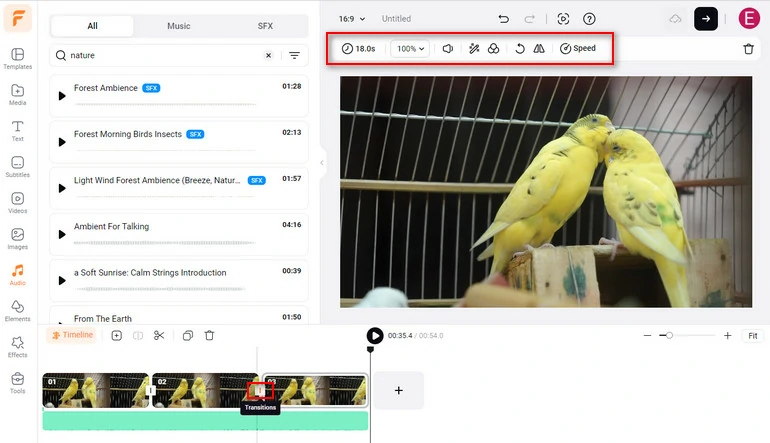
Make More Edits on the Looped Video
Add an Intro or Outro
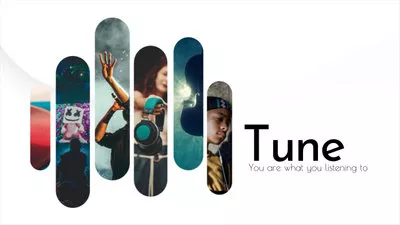
The intro is like a trailer, showing audiences what the video is about. The outro is the scene used to show the information about the video creator, the channel, or CTA. Those 2-4 second clips are extremely popular among YouTubers.
Intros and outros can be as simple as a background video with several words, or as complicated as designing animations in AE. In case you don't have an intro/outro at hand, here are some free templates for you to customize.

Video Boomerang
Boomerang is similar to loop. However, boomerang plays videos back and forth instead of repeating a video several times.
Instagram developed Boomerang app to make a reversed version from an existing video clip. Check out How to Create a Boomerang Video > for all details. Any video editors with a Reverse feature can also be used to create boomerang videos.
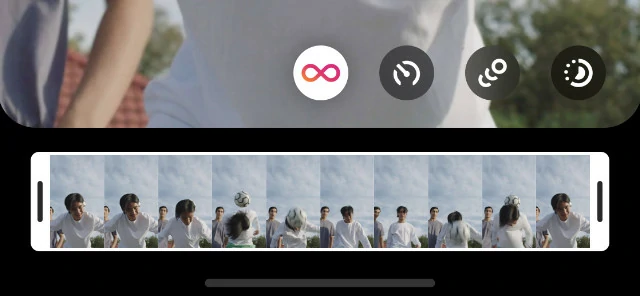
Video Boomerang
Change Video Speed
Normally, a one-second video consists of 30 frames. If you make a video play slower, they will make a frame play twice or even more. Thus, the video is longer.
FlexClip makes it possible for you to change video speed from 0.1X to 8X in just one click. To achieve better results, use the curve speed tool to gradually slow down your video.
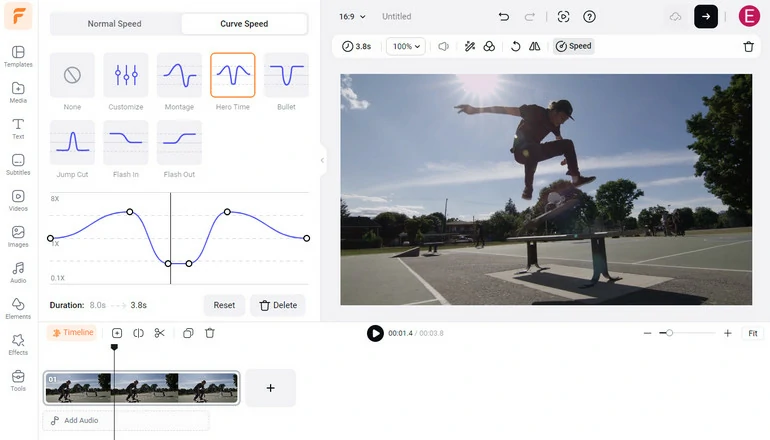
Change Video Speed at FlexClip
Freeze Frame
Freeze frame is when a video stops at a still frame. It is widely used in film production to set up the style tone or enhance the narrative.
When it is used to extend video length, we suggest you freeze the last frame of your video clip so that the video doesn't look strange.
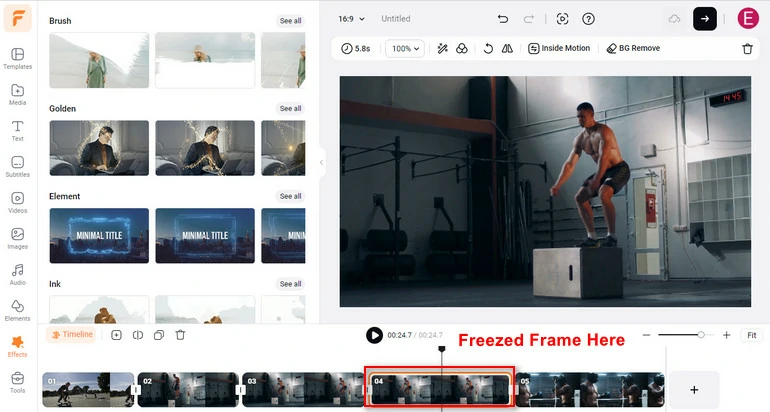
Freeze Frame
Turn Image to Video
Backed up with the latest AI model like VEO 3.1, Kling, Minimax, anyone can use FlexClip to animate still images with zoom, pan, motion effects, or even realistic movement. Embrace AI, make your video more engaging without spending too much on production.
Step 1. Extract the Last Frame of Your Video
Drag and drop your video to FlexClip's timeline. Right-click on the last frame of your video, then hit Export. A JPG image will be exported to your computer.
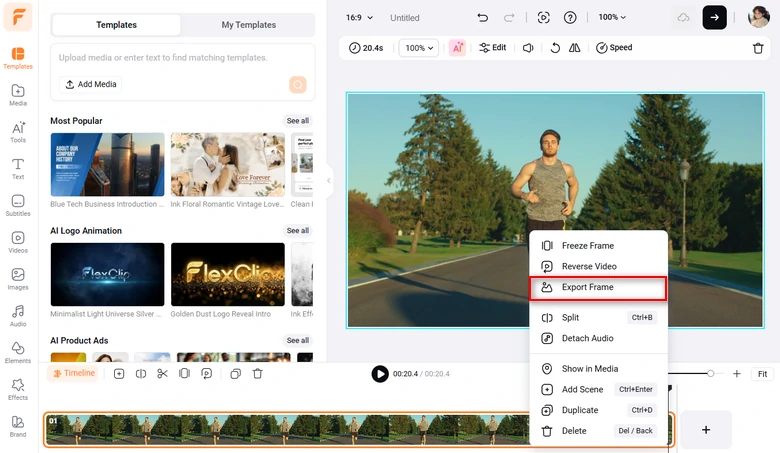
Extract Frame from Video
Step 2. Animate the Image
Switch to FlexClip's AI Video Generator, pick a video generation model you like, then upload the last frame of your video, enter a prompt describing the movement you love. Setup the video duration and hit Generate.
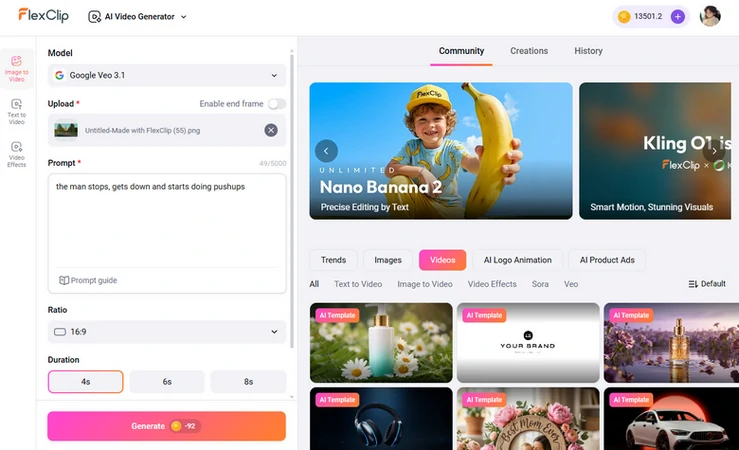
Turn Image to Video
For instance, we asked FlexClip to make this man get down and do push-ups, here is what we got.
AI Generated Clips
Step 3. Merge the Clips
Switch back to FlexClip's timeline, drag and drop the generated AI clips behind the original clip.
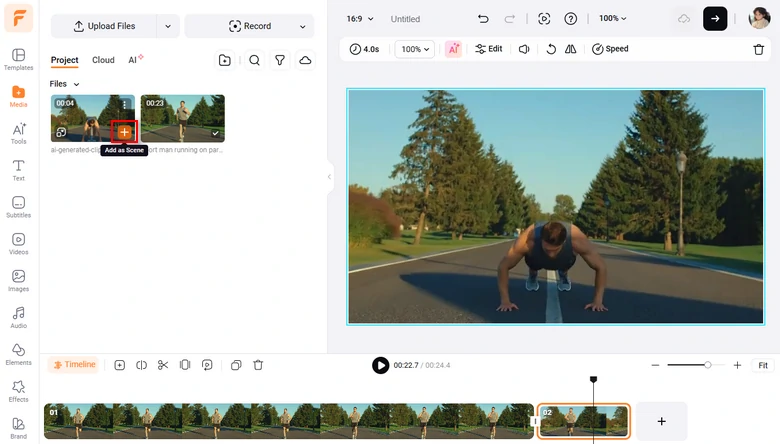
Merge Video Clips
FAQs About Making a Video Longer
Q1: Can you loop a video to make it longer?
Looping is a great way to extend video length. To loop a video, upload a video to FlexClip, click it on the timeline, and then select Duplicate.
Q2: Can you edit a video to make it longer?
To edit a video to make it longer, there are several possible ways. You can combine several photos and clips together, looping video, or use slow-motion.
Q3: How do I extend a video on my iPhone?
Turn to iMovie, upload your video clip to iMovie's timeline, duplicate the video clip in the timeline, add more video clips, or change the video speed.
Q4: How do I send a video that's too big?
You can share a big video via cloud services, email, or generate a link for the big video.
The Bottom Line
Now, you have learned how to make a video longer for Instagram, YouTube or other social media platforms. By the way, Don’t forget to give FlexClip a try! FlexClip’s powerful video editing tool and rich materials are waiting for you to try freely!




FlexClip AI Video Maker
Reach professional-quality videos faster with easy editing tools, templates, and smart AI.
Start Now for Free
Hot & Trending
-

Best Ways to Find Music in YouTube Videos
-

Instagram Story Video Quality Bad After Upload? Fix It!
-

How to Repost Video on TikTok & How to Remove TikTok Repost
-

Improve Video Quality Online: 3 AI Video Quality Enhancers You Can't Miss
-

4K Convert to HD 1080p without Watermark: Best 4k Video Converters
-

Best 8 Free Video Editors - No Download Required
-

Top 13 Birthday Video Makers with Music and Effects Free
-

How to Search Filters on TikTok & Use a Filter You See - TikTok Filter Guide